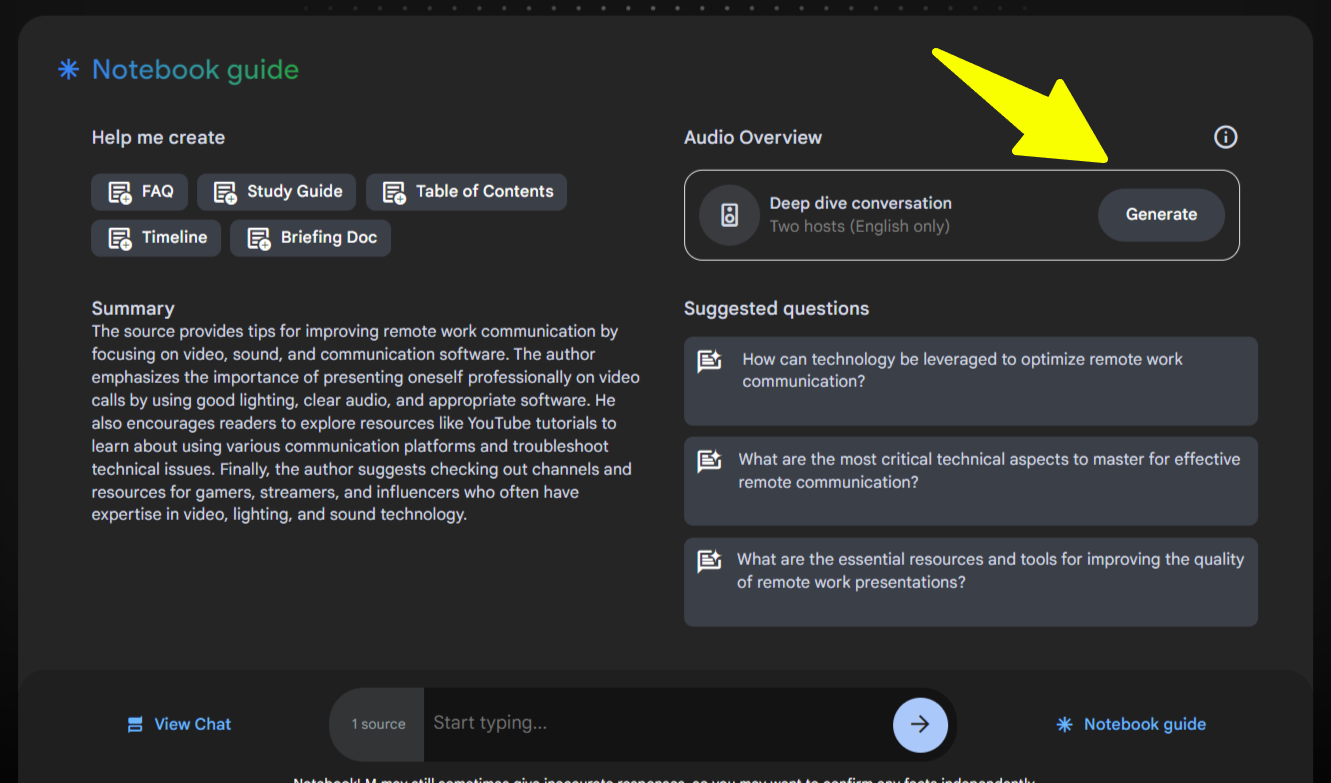
Like almost everyone when I tried out Google’s NotebookLM AI curated podcast feature I was blown away. The conversation capabilities are pretty sweet. But if you’re here you’re like me and would like a little more control over the content, maybe you want to use different voices so that yours doesn’t sound the same as everyone else’s.
Well, I went down the rabbit hole to figure this out so that you don’t have to. Seeing how fast things move, I’m sure this post will be obsolete soon, or someone has already come up with a better way.
Oh well, let’s do it anyway. I’m guessing you already know how to use NotebookLM so I’ll skip all that.
What you'll need to create custom voices
Step 1: Content
The first step is to write your article, or gather your sources for your notebook and go through the content to make sure you have all the information that you want included.
Step 2: NotebookLM
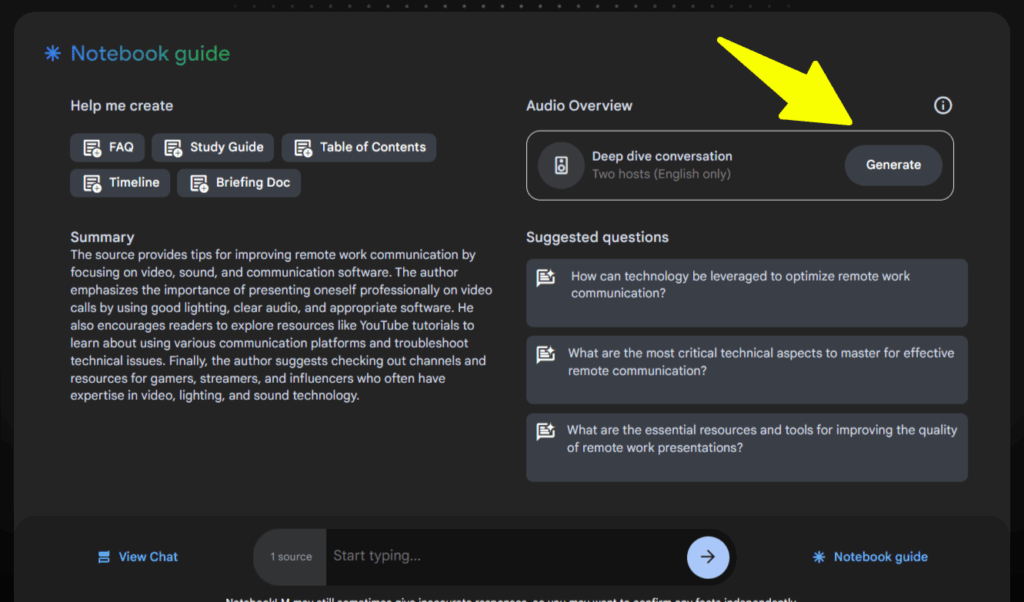
Generate your deep dive conversation to curate your AI powered podcast discussion. This may take a bit.
You’ll want to listen to it to make sure it’s got the basics correct and is a conversation that you can work. Don’t worry, I’m going to show you how to edit the conversation, but you want to have a good starting point so you can keep it to a minimum and not have to rewrite the whole thing.
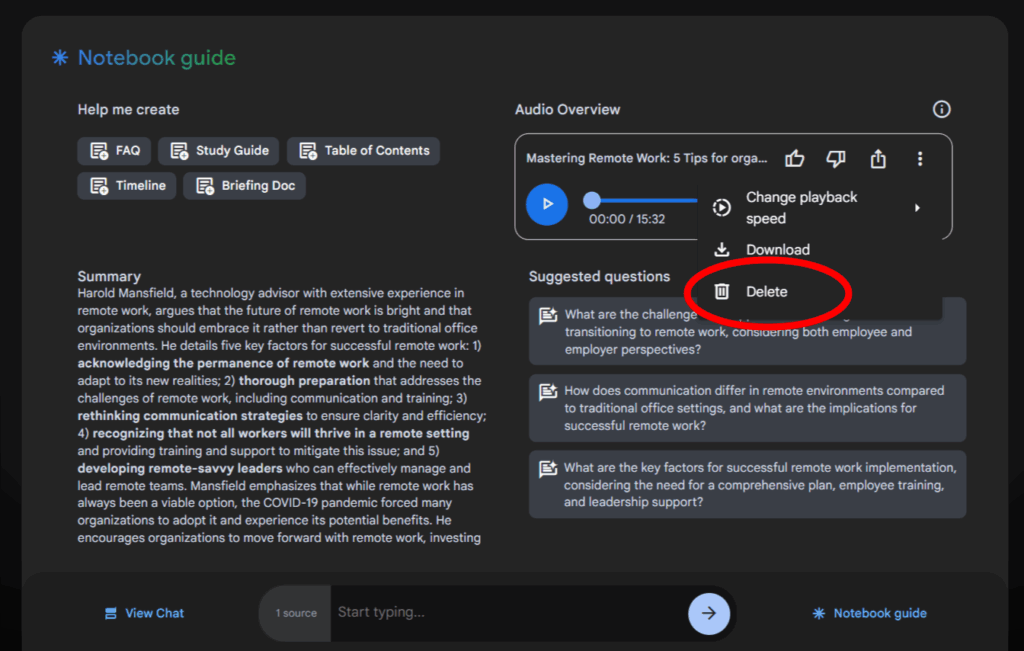
If you don’t have a good starting point you can delete the podcast and start over. If after a few tries you’re still not getting what you want, you may want to adjust the sources, or edit your article. I’m using it to curate conversations for my own articles so I can easily edit them.
Step 3: Descript
Now assuming you have a well generated podcast as a base, it’s time to fire up Descript. I’m pretty sure you can do what you need with the free or cheapest plan. I paid for the hobbyist plan thinking I could separate the speakers into different audio tracks, but turned out to be a bust. I spent an entire Saturday trying to do it that way without having to do it manually. Glad I didn’t figure it out, this way offers much more control.
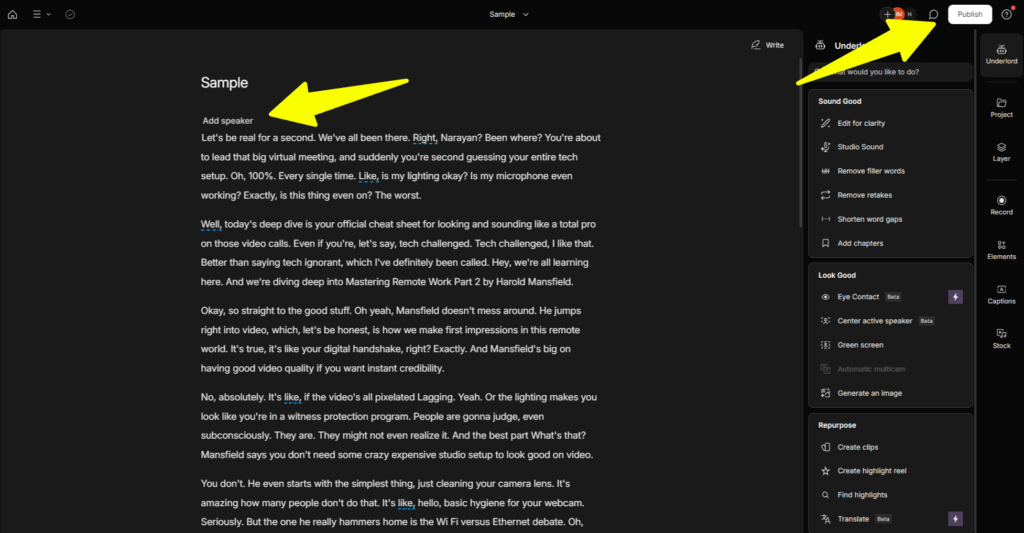
Once you create your account create a new audio project go ahead and upload your NotebookLM podcast .wav or .mp3 file. As it’s transcribing you should get a pop up asking you to identify how many speakers there are (2), and to name them. Descript will separate the speakers and create a transcript identifying them and their speaking parts.

If you don’t get the pop up, or mistakenly click it away, wait for the transcription to complete, then in the transcript area click at the top where it says “Add speaker” and it will let you identify them.
At this point you should now have a transcript to work with. Go up to “Export” on the top right and export the transcript. Plain text is fine.
Step 4: ElevenLabs
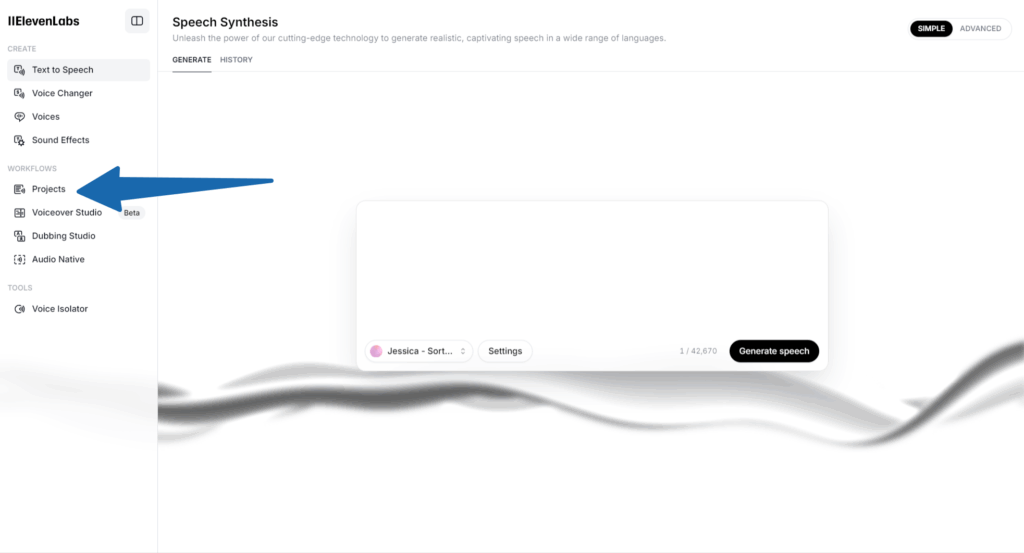
Now this is the exciting part. After you’ve created your account and upgraded to the creators plan, you’ll want to start a new project. Projects let you assign voices to your text. This is where you’re going to upload that Descript transcript that has already separated the speakers for you.
You should check out the voices available in ElevenLabs ahead of time so that you can find the right ones. You want to make sure they compliment each other in tone, accent, and style. Take your time. I chose hastily the first time because I was so excited and had to go back and redo the whole thing with new voices.
Assuming you’ve found your voices (no, there’s no way to pin them), you can start assigning them to the parts of the copy you want. Your last used voices will stay at the top of the drop down.
Important: You will need to remove the names of your speakers that you created in Descript from the transcript or the ElevenLabs AI voices will say them as part of the copy.
You want to separate or line break (or hit return) in between parts to make it easier to assign the correct voice to the correct part. I found this video by patricia Avant that explains it pretty well. The audio isn’t great, but it gets to the point. If you find a better tutorial, go for it.
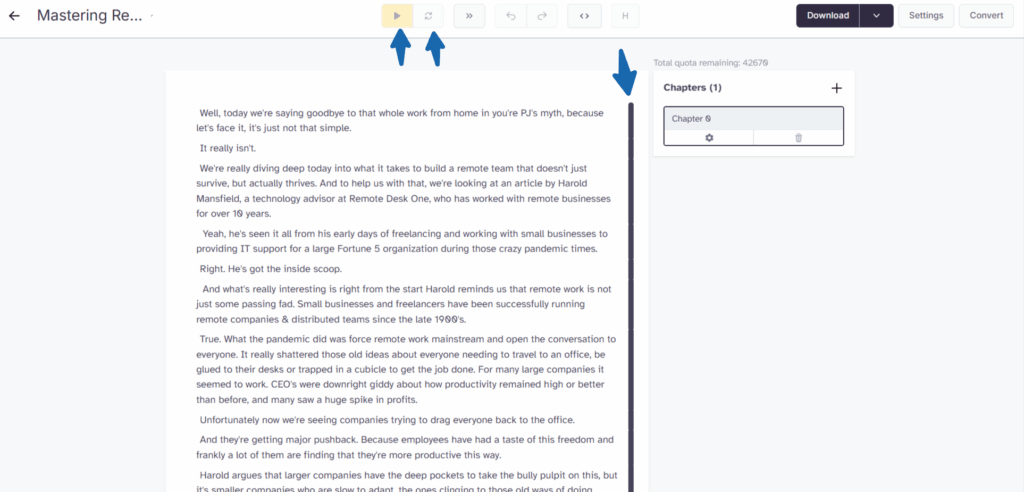
The really cool part of this process using ElevenLabs is that you can make corrections and additions to the script on the fly. It’s far easier than trying to do it in Descript, but if you’re use to that process by all means.
When making changes to the copy you can test it..hear it, go back and make corrections until you get it right. Sometimes a work or comma can change the inflection, tone or pronunciation.
Don’t forget to use the refresh to listen to the changes. As you add, adjust and refresh to confirm the changes you will be building the final file. You’ll see an indicator on the right letting you know what sections are done and what sections still need to be confirmed.
Step 5: Season to taste
Once you’ve got the AI podcast that you want, go ahead and download the audio file.
Now you can use the tool of your choice to do things like audio level ( I did this in Descript), add bumpers, music, sound effects, whatever.
The cool part about this process is since you’ve already created custom voices, and can change their scripts on the fly, you can add promos or whatever additional text you want and it will sound consistent.
If you need some inspiration I did this for one of my articles over at Remote Desk One, “Mastering Remote Work for Teams: A guide for building successful remote teams“
Check it out below.
That’s it! Hope this helped.
Pro Tip: Use your generations wisely when editing your content in ElevenLabs. You only get so much in the creator account. If you want to to more you’ll have to upgrade to a higher tier plan.

Multi-disciplinary IT support strategist with 15+ years experience empowering entrepreneurs, corporate colleagues and remote teams with the knowledge, skills and technologies to get stuff done. | Sec+ – CySA+ (CSAP) – ITIL – ACSP
Comments are closed.